Disclosure: This product was sent to us free of charge for the purpose of this review. However, as per my PR Info page, this review represents our honest opinion of the product. This post may contain affiliate links.
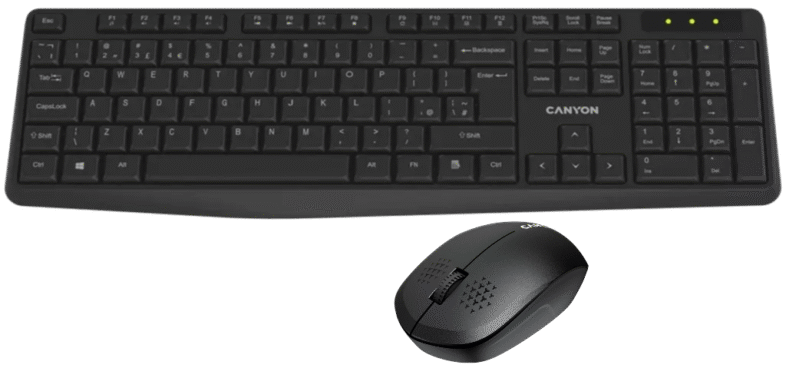
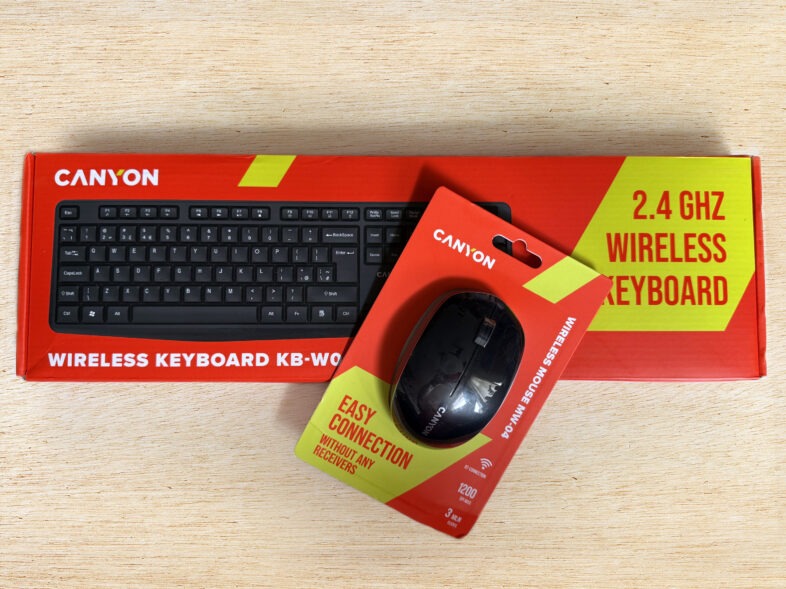
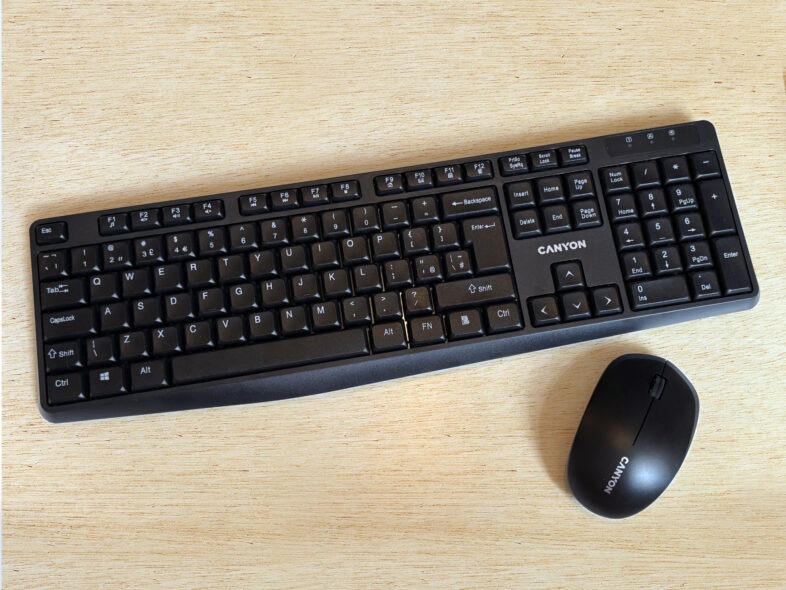
Product: Canyon Wireless Keyboard KB-W01 & Canyon Wireless Mouse MW-04
Price: £9.99 for the keyboard, £5.99 for the mouse
Manufacturer’s Description: The KB-W01 Wireless Keyboard is your invitation into the world of effortless typing where tangled cables are no longer a reason for worrying. Designed for those who value both functionality and simplicity, this classic full-size keyboard provides a truly seamless typing experience that’s perfect for work, play, and everything in between.
The MW-04 mouse from Canyon is the universal remedy for all your needs. Thanks to its Bluetooth 5.0 capabilities, it can be effortlessly connected to a wide variety of devices.
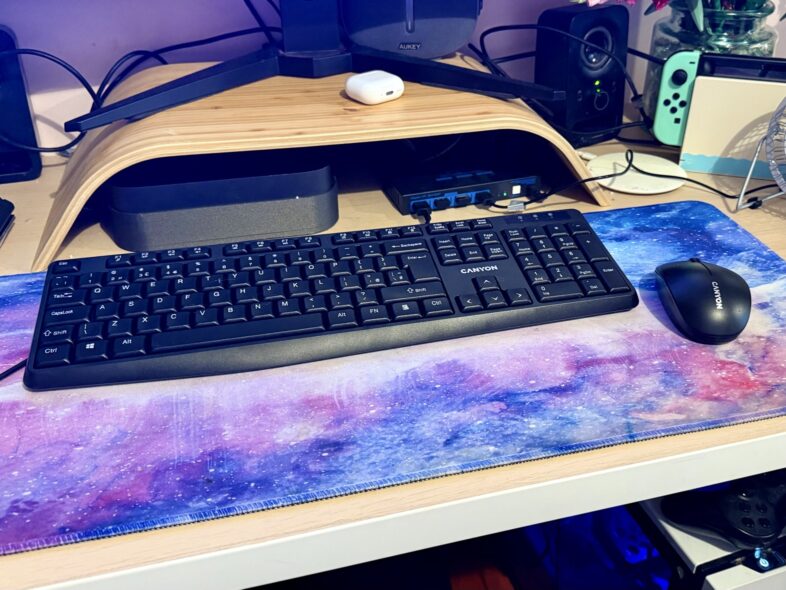
Rating: (3/5 stars) Review: I’m always keen to try out new tech, so I happily agreed to review Canyon’s budget-friendly wireless keyboard and mouse. We’ve been using them for the past week to put them through their paces. At just £16 for both devices, these peripherals are a good option for students looking for something affordable. If they do get damaged, from spilled drinks or something similar, they won’t need to break the bank to replace them. The Canyon keyboard is a decent option for a budget keyboard, especially considering the wireless capability for just £9.99. It feels comfortable to type on, although it does flex a bit in the middle while typing, which I’m not a fan of. It’s a full-size keyboard with a numpad and uses a 2.4GHz USB dongle to connect to your computer. It runs on a single AAA battery, which is included in the box. James, myself, and Georgie have all had a go typing on it. Georgie liked the typing experience, while James and I both thought it was “good enough for the price” but not what we’d want for daily intensive use. The mouse is a typical small and inexpensive wireless mouse. I’ve had one or two just like this Canyon one in the past, and it’s on par with those. It’s certainly the cheapest I’ve come across. It connects via Bluetooth rather than using a dongle, which is great if you want to use it with a tablet or laptop computer. You don’t need to fuss with an easily lost dongle, plugging something in and out. It’s also small enough that you can slip it easily into a bag. The mouse runs on one AA battery, and you get one with it so you can be ready to go as soon as you open the packaging. However, there’s a significant issue with the mouse connectivity when you use the keyboard. If you plan to use the mouse and keyboard together, you must connect the mouse via Bluetooth before plugging in the keyboard dongle. Otherwise, the mouse automatically connects via the dongle, doesn’t appear as a Bluetooth device, and has poor performance – it just judders about on the screen. If you plug in the keyboard dongle first, you have to pull it out and then pull out the mouse battery to turn it off and on again before it becomes discoverable via Bluetooth. Once connected, you can then plug in the dongle to use the keyboard. This is a really inconvenient situation, and it happens with both Mac and Windows. We use a dual setup on our living room desk with a Mac Mini and a Windows PC. We use a switcher to flip the screen and peripherals between the two computers. Currently, I use a wireless Logitech mouse with a dongle and an old USB Logitech keyboard, so the switching is seamless. The Canyon keyboard dongle works fine in the switcher, but it’s a hassle to disconnect and reconnect the mouse, especially since the keyboard dongle constantly hijacks it whenever you unpair it from something. Therefore, we can’t use the mouse with our current setup. I did try pairing the mouse to my iPad Pro, and that worked okay. However, it had to be paired to the iPad before the dongle was plugged into the computer. Initially, it tried to connect to the computer from the other side of the room instead of being available to the iPad that was next to it. I would recommend the keyboard to someone looking for a budget-friendly wireless option, especially for students. The mouse works, but you have to figure out how to set it up properly when used with the keyboard. Additionally, if you have the keyboard, using it with more than one device means having to unplug the dongle whenever you want to unpair the mouse to use with another device. Both devices are lightweight and seem well-built, but they do feel a bit cheap in your hands. Each device works perfectly fine on its own and is a good choice if you’re looking for an inexpensive basic option, especially considering they are both wireless. Ultimately, you get what you pay for with these devices, and they would be a good choice for a home computer setup for students, as long as you connect them correctly!