
Hi, welcome to Part 1 of my WordPress MOT blog series, following my recent session on the subject at the BlogOn Conference. Part 1 covers the first few topics of my session; how to “tidy up your blog & quick tips to improve blog appearance”. I hope you find it useful!
Please note: these tips are primarily for self-hosted WordPress blogs but some do apply to WordPress.com sites as well.

Tidy up your blog
This section covers general tidy up tips, to keep your blog in check & make it easy for people to find what they need, follow you, and contact you.
Social Media – make sure your social accounts are easy to find on your blog so that people can come and follow you on their favourite social network. If you use the Jetpack plugin there is a built in social widget, and a lot of themes have it built in too. Keep them somewhere near the top of your sidebar or in the header area of your site so that they are obvious.

Subscribe Options – people need to be able to follow you easily, or they won’t bother. Add an email sign up form to your sidebar, as well as a bloglovin’ badge and RSS link. Check that your RSS feed is valid with the Feed Validator – if it isn’t then people may be unable to follow you and Bloglovin’ may not work as it is essentially a feed reader. Minor warnings are probably unimportant but totally invalid feeds will be causing problems. To find your feed address just add /feed/ to the end of your blog address; so for this blog the RSS feed address is https://mamageek.co.uk/feed/
Contact Info – make it easy to find & include your email address. Have a contact page or obvious sidebar widget, and include your email address so that you can be email directly. Contact forms are useful to have as well, but most PRs etc will prefer to be able to add your email to their lists, and also have the advantage of being able to have attachments sent to them.
About Me – make sure your about page and/or widget is up to date. One good tip is instead of saying how old your children are, include their birth years & months to save you going in after every birthday to change it.
Tags & Categories – these can easily get out of hand. The Term Management Tools plugin lets you merge both tagss & categories, convert tag⟷category, and set parent categories. Categories are board terms, i.e. “Review” and tags are specific i.e. “Brand Name”

Sort out your widgets
- Search box – put it high up in your sidebar (or header) so people can find what they are after easily.
- Condense brand/ambassador badges into a slideshow widget – the Slideshow plugin is great for this.
- Remove any old brand badges or old adverts
- Get rid of any widgets you don’t really need, or control where they appear with Widget Visibility – this is a module in Jetpack, and if you don’t have it installed then there is also a plugin just with that functionality.
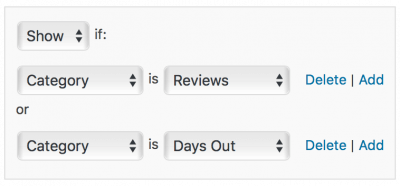
- Move less important widgets to the footer
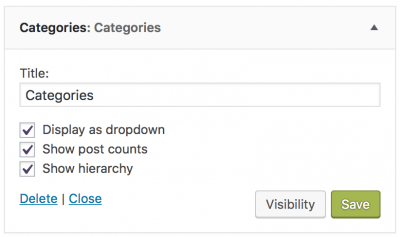
- Include archive widgets – “Archives” lists by months and is a great way for people to get an idea of the age of your blog as well as view the history or your site, and the “Categories” widget lets people find the different topics of your blog easily. You can choose to display these as drop down and they will hardly take up any space.
Quick tips to improve blog appearance
- Keep it simple – don’t use too many colours or fonts.
- Use easy to read fonts & keep it a readable size and colour. No light grey text on white backgrounds!
- Be consistent – i.e. if some images are centred in widgets, centre them all.
- Link your design to the header/logo via your font & colours
- A bit of whitespace can make things less chaotic – decrease clutter. Increasing margins can be a quick and easy way to achieve this.
- Don’t overdo the adverts! Too many all over the place makes an uncomfortable reading experience.
- Don’t have too much popping up or floating over the side of the screen. If you do, check your site on a mobile screen and also a small browser window. I’ve seen a lot of sites where the content is covered and it’s either difficult or impossible to dismiss it.
- Are you mobile friendly? This is important to Google and your readers. Many modern themes are responsive, so if you have a mobile theme plugin you might be able to get rid of it and just use your normal theme on mobile.
Coming up in Part 2… Optimise your site/improve site speed. It should be up soon.
Need more help? Feel free to get in touch via Zoe Corkhill Web Design – advice is always free!
Pin it for later…


I really enjoyed your session at Blog On, it was so very helpful and I look forward to reading the follow up posts in this series
thanks so much for sharing this, your session was fab!
I really enjoyed your session Zoe, and these posts are really useful. Thanks for sharing and for being your awesome self 🙂 x