
Originally developed for children with leaning disabilities, the new Guided Access mode in Apple’s iOS 6 software is a fantastic new development for all parents of touch screen savvy kids.
In a nutshell, the new feature allows you to lock down your iPhone, iPod Touch or iPad to a “single app mode”. In addition to the automatic disabling of all hardware buttons you can also turn off the touch screen or motion controls of the device. You can even draw no go areas of the screen to disable particular areas of the app in question – allowing you to disable (for example) buttons or advertising banners, preventing your children from being able to accidentally tap things you’d rather they didn’t.
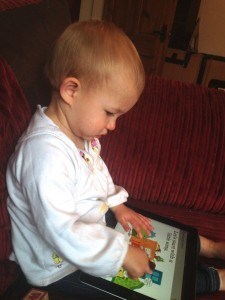
As the mother of a slightly geeky toddler, who has recently discovered the delights of the clicky clicky home button, I’m delighted that Georgie will no longer be able to quit the game or book she is enjoying and start deleting my important emails or notes instead! She quite often clicks the home button by accident and then gets frustrated that whatever she is doing or watching goes away, so this new feature is a godsend; she tends to demonstrate her frustration by carrying the iPad over to me and banging it down on my lap, so I can restart the fun!

To turn on Guided Access, head to your Settings app, then head to ‘General’ > ‘Accessibility’ > ‘Guided Access’ (under Learning) > then flip the switch to the ‘On’ position.
You can either set a passcode in the settings app, or the system will prompt you to choose one upon first use.
Once you have Guided Access turned on, just head to the app your little one wants to play with and triple click the home button. You will be greeted with an easy to use setup screen with various options. If you want to deactivate any part of the screen just draw around that feature on the screen and it will automatically outline the elements you’re indicating. Tap the ‘Start’ button top right and away you go – one kid proof iOS device!

To get out of Guided Access mode, just triple click the home button again and enter your passcode. This gets you back to the setup screen where you can either amend your settings and resume, or finish using the session using the ‘End’ button, which you can find at the top left of the screen.
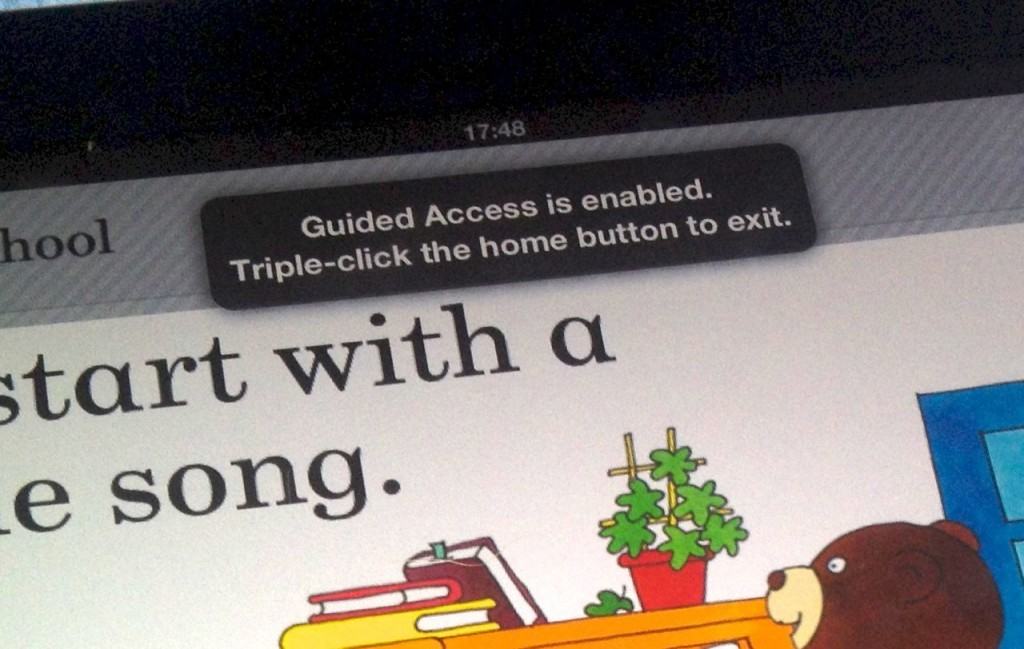
And there you have it – how to kid proof your iOS device… Of course, this won’t stop them throwing it around so make sure they know not to crack those beautiful screens! I hope this post has proved useful to some of you, and saves a few important emails, or apps from being deleted accidentally.



brilliant absolutely brilliant! I was in 2 minds about updating my ios but this has made up my mind. Thank you!
Pleased I could help! I think this is probably the best iOS 6 parents for features, hands down!
Our 7 months old “Kid Mode Concept” for iOS – http://dribbble.com/shots/433707-iOS-Kid-Mode-Concept/attachments/26094
Nice, but it doesn’t seem to solve the main issue of Georgie exiting an app by accident by pressing the home button. Not quite as streamlined to use as guided access either, which is essentially always on & requires minimal configuration.