
I love to comment on other blogs as much as I can, as the blogging community is a fab place to be. I know how much I enjoy having people comment on my posts to tell me what they think, and so I’m resolving to comment more on blogs when I read them.
A lot of the time, I read other people’s blogs on my iPad, laying in bed at night, or with my iPhone when I’m sat on the sofa breastfeeding Lydia. To make it easier for myself, I’ve set up text shortcuts so I can enter my information quickly, and not have to type so much.
A text shortcut allows you to just type a few characters, which then change automatically to your full word or phrase, when you press the space key, or the “next field” button.

The three most common pieces of information you provide on comment forms are: Name, Email Address, and Website URL.
As such, I have three shortcuts set up to make my commenting easier, these are:
- “zcmg” turns into “Zoe Corkhill (Mama Geek)”
- “z@m” turns into “zoe@mamageek.co.uk”
- “mg” turns into “https://mamageek.co.uk”
Using these three shortcuts means that I can populate the identification fields of a comment form quickly, and use my time actually writing my comment. This is especially great when you’re browsing through linky entries like “Silent Sunday,” and want to comment on a lot of blogs in a short space of time – a lot of repetition is avoided with this tip!
Set up text shortcuts on an iOS device
To set up your own text shortcuts, head to the Settings app on your iPhone, iPad, or iPod Touch.
Step 1: Navigate to: Settings → General → Keyboard → Add New Shortcut…

Step 2: Enter your chosen phrase (i.e. your name), and the shortcut you want to use for that phrase
Step 3: Tap “Save” and repeat until you have all the phrases you need – and you’re done!

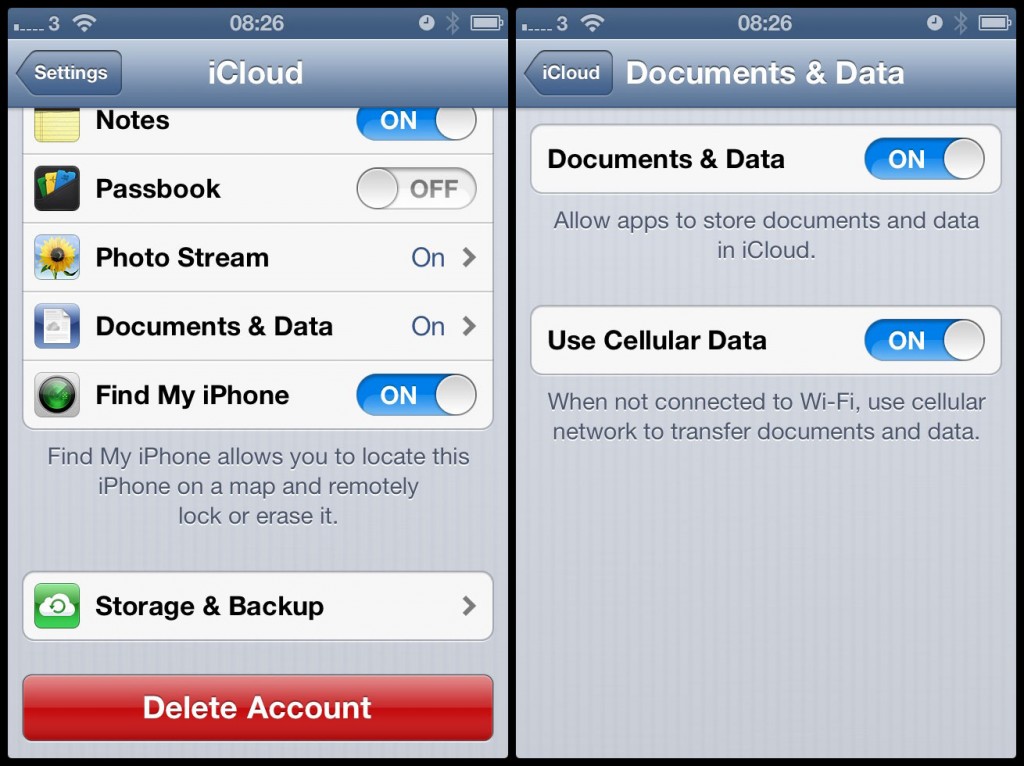
Sync text shortcuts across devices
If you have multiple iOS devices – for example, I have an iPad as well as my iPhone, you can set it so that your text shortcuts automatically sync across your devices, so that whatever you set on one will be set on the other as well. To do this, head to the Settings app.
Step 1: Navigate to: Settings → Cloud → Documents & Data
Step 2: Make sure that the slider switch is set to “On” – and that’s it! If you don’t have iCloud set up on your device, you may need to enable it first.
You can also use text shortcuts on Mac OS X – follow this tutorial on Lifehacker to set them up. Quick tip though: If they don’t seem to be working even after you’ve set them up, make sure that “Substitutions” → “Text Replacement” is enabled in the Edit menu of the app you want to use them in. A quick google tells me that you can install a text expander app called Phrase Express for Windows, if you want to duplicate this functionality on your Windows PC.
Well, there you have it. I hope I’ve saved you all valuable minutes of repetitive typing, and made commenting on blogs that little bit easier. I find that being able to skip typing my name over and over has really increased how many comments I’m leaving, and I’m going to try to stick to my new resolve of commenting on all of the blog posts that I read!




One thing i miss from having an iphone, mine doesn’t have this!
If you’re on Android Bec it might be worth looking at something like this? https://play.google.com/store/apps/details?id=com.designatum_1393.textspansion&hl=en
@tots100 can I get a RT for this blogging tip? Speed up your blog commenting with text shortcuts on iPhone & iPad
@BritMums can I get a RT for this blogging tip? Speed up your blog commenting with text shortcuts on iPhone & iPad
AMAZING tips. I didn’t know that the iPhone could do that! Thank you xx
Alex
http://www.Bump-to-Baby.com
UK based Lifestyle & Parenting Blog
@zoecorkhill Great tip! I didn’t know the iPhone could do this. Thanks.
“@zoecorkhill: @tots100 Speed up your blog commenting with text shortcuts on iPhone & iPad
”>So useful!
“@zoecorkhill: Geeking Out: Speed up your blog commenting with text shortcuts on iPhone & iPad ”- this is amazing!
no not android, we’re on windows phones, thanks for looking though x
Great tip Zoe!
GENIUS! You are an absolutely GENIUS. xx
Great tips: Geeking Out: Speed up your blog commenting with text shortcuts on iPhone & iPad: via @zoecorkhill
Bec here you go – Windows phone info http://www.windowsphone.com/en-us/how-to/wp7/basics/typing-shortcuts
thankyou, I’ve managed to add some words but don’t get to do a proper shortcut like “omw” for “on my way” . they’ll get there eventually I guess!
@zoecorkhill @tots100 that’s awesome! Can’t believe how little I know about how to work my iPhone!
“@zoecorkhill:Speed up your blog commenting with text shortcuts on iPhone & iPad
” <– Really useful tip!
Brilliant tips – this is on my ‘to do list for today’! Thank you
Brilliant tips, so useful thanks!
Set mine up now! Great tip, thanks!
Genius! On my list of things to do for the day….
Thank you, my husband told me about this but hasn’t visually showed me. I’m going to pin this post as a reminder so I can get to grips with it. Thank you.